Showing posts with label iphone. Show all posts

July 3, 2015

How to Jailbreak iOS 8.4 Using PP Jailbreak

iOS 8.1.3 – 8.4 အထိ idevices မ်ားကို
Chinese iOS Hacker Team ကေနထုတ္ေပးလုိက္တဲ့
PP Jailbreak 2.3 ထြက္ရိွလာပါၿပီ ။

 အခုက Windows Version အတြက္ပါ ။

Be sure to close the “Find My iPhone” in Settings -> iCloud before jailbreaking. Also turn off Touch and password in Settings -> Touch ID and password -> Turn off password.


Jailbreak ျပဳလုပ္လုိတဲ့ သင့္ရဲ႕ iPhone/Pad/Pod touch မွာ 
Find My iPhone ကုိ off ထားပါ ။

Airplane mode ကုိ on ထားပါ ။

passcode ကုိ off ထားပါ ။
iPhone/Pad/Pod touch နဲ႕ ကြန္ပ်ဴတာကုိ USB Cable ျဖင့္ခ်ိတ္ဆက္ထားပါ ။
ကြန္ပ်ဴတာတြင္ iTunes ကုိဖြင့္ထားပါ ။

 iDevice ခ်ိတ္ဆက္ထားေၾကာင္းကို 
ကြန္ပ်ဴတာက iTunes မွာေပၚေနပါေစ ။

STEP 1...
Download PP Jailbreak from above link.
အရင္ဆုံး PP Jailbreak Tool ကုိ ေအာက္ပါ Download Link မွ ရယူပါ ။

PP Jailbreak tools

OR

PP Jailbreak 46.27 MB


Step 2...
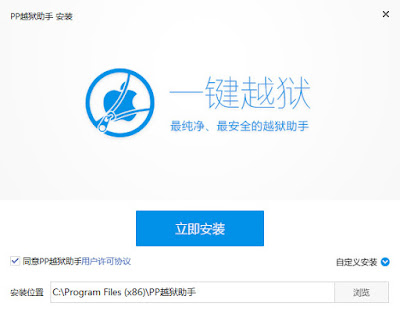
Open the exe file and tap on the blue button to start installing the jailbreak tool.

Download ရယူထားတဲ့ PP Jailbreak Tool ကုိဖြင့္ပါ ။

အျပာေရာင္ခလုတ္ေလးကုိႏွိပ္ပါ ။


Step 3...
Still click on the blue button to complete the installation.

အျပာေရာင္အမွန္ျခစ္သေကၤတေလးနဲ႕ေပၚလာျပီဆုိရင္ အျပာေရာင္ခလုတ္ေလးကုိထပ္ႏွိပ္ပါ ။


Step 4...
Open the installed jailbreak tool from your desktop.

ကြန္ပ်ဴတာ Desktop ေပၚမွ Jailbreak tool ကို ဖြင့္ပါ ။

Step 5...
 Once you device is detected, click the green button located below

Jailbreak လုပ္ရမယ့္ Tool ႏွင့္ သင့္ iDevice ခ်ိတ္မိသြားပါၿပီ ။
အစိမ္းေရာင္ခလုတ္ေလးကုိႏွိပ္ပါ ။


Step 6...
Uncheck the box
 Click the button below to start jailbreaking. 

ပံုတြင္ၿပထားေသာ အမွန္ၿခစ္ ေလးအားၿဖဳတ္ပါ ။
ၿပီးလွ်င္ ေအာက္မွ ခလုပ္အား ႏိွပ္ပါ ။ 

 Step 7...
 clicking the button on the right

ပံုတြင္ၿပထားေသာ ခလုတ္ ၂ တြင္ ညာဘက္မွ ခလုတ္ကုိႏွိပ္ပါ။
 
PPjailbreak6

Step 8...
The jailbreak process will begin, which will take several minutes, 
please wait until it completed.

Jailbreak စတင္လုပ္ေဆာင္ ေနေသာေႀကာင့္ မိနစ္အနည္းအငယ္ ေစာင့္ပါ ။


 ၿပီးလွ်င္ သင္ ၏ iDevice ႔တြင္ Restore in Progress ေပၚလာပါမယ္ ။


ခဏႀကာလွ်င္ Reboot ၿဖစ္ပါမည္ ။


 Done, your device has been jailbroken on iOS 8.4 untethered.

ကြန္ပ်ဴတာေပၚမွ PP Jailbreak Tool သည္ 
Jailbreak လုပ္တာေအာင္ျမင္ေၾကာင္း Message ေပၚလာပါမည္။
 

June 25, 2014

iOS 7.1.1 Jailbreak

iOS 7.1 ႏွင့္ အထက္မ်ားအတြက္ Untether နည္းနဲ႔ Jailbreak လုပ္ႏိုင္မယ့္ Tool ကို 'Pangu Team' လို႔ အမည္ရတဲ့ တ႐ုပ္ ဟက္ကာမ်ား အဖြဲက ထုတ္ေပးလိုက္ပါၿပီ..

Hacking သင္တန္းမ်ားကိုပဲ ပို႔ခ်ေပးၿပီး Jailbreak tool မထုတ္ေပးေတာ့ဘူးလို႔ ေၾကာျငာထားတဲ့ hacker တစ္ဦးျဖစ္သူ 'i0n1c' က "Pangu team အေနနဲ႔ အားနည္းခ်က္မ်ားစြာ ရွိေနေသးတဲ့ Jailbraek ကို အမ်ားအတြက္ ထုတ္ေပးလိုက္ေပမယ့္ ဒါဟာ အလုပ္ျဖစ္မွာ မဟုတ္ဘူး" လို႔ လူသိရွင္ၾကား ထုတ္ေဖာ္ ေျပာၾကားထားပါတယ္..

Jailbreak လုပ္ႏိုင္ရင္ေတာင္ မိမိ device အတြက္ လံုျခံဳေရးဆိုင္ရာ အႏၲရာယ္ ရွိလာႏိုင္တဲ့အတြက္ Safe ျဖစ္တာ ေသခ်ာမွ လုပ္ေဆာင္ဖို႔ သတိျပဳရပါလိမ့္မယ္။

သို႔ေပမယ့္ 'sn0wbreeze' ကို တီထြင္ေသာ 'iHSn0w' အဖြဲ႕ကေတာ့ "Pangu" မွာ spyware မရွိေၾကာင္း အတည္ျပဳေပးခဲ့ပါတယ္..

ထို႔ေၾကာင့္ Jailbreak ရၿပီ ဆိုေသာ္ျငားလည္း သတိထားၿပီး လုပ္ေဆာင္ၾကဖို႔ တိုက္တြန္လိုပါတယ္။
ယခု Jailbreak ကို WINDOWS တစ္မ်ိဳးအတြက္သာ ထုတ္ေပးထားပါတယ္.. 


အျပည့္အစုံဖတ္ရန္ >> http://www.myanmarmobileapp.com/2014/06/23/ios-7-1-1-%e1%80%80%e1%80%af%e1%80%ad-untethered-jailbreak-%e1%80%9c%e1%80%af%e1%80%95%e1%80%b9%e1%80%94%e1%80%8a%e1%80%b9%e1%80%b8-step-by-step-tutori
** Jailbreak မလုပ္မီ ျပင္ဆင္ရန္ **

- Passcode ကို ျဖဳတ္ထားပါ
- Device က Date ကို "02.June.2014" (သို႔) ထိုရက္ထက္ ေစာထားပါ။
- iOS 7.1.1 သန္႔သန္႔ ကိုတင္ထားပါ
- BackUp Phone 

>> Download for WINDOWS 

 Software တြင္ တ႐ုပ္လိုသာ ေရးသား ေဖာ္ျပထားေသာေၾကာင့္ ေအာက္ပါပံု၏ စာအၫႊန္းအတိုင္း တစ္ဆင့္ျခင္း ေဆာင္ရြက္ပါ... 


Credti to : moethagyarr

June 20, 2013

How to transfer individual Photo Albums from iPad / iPhone to PC

iPad / iPhone တို ့ထဲမွာ Camera Roll ထဲက မဟုတ္ပဲ တစ္ၿခား Album Name ထဲက
Photo ေတြကို Computer ထဲ ကူးခ်င္ရင္ အလြယ္ဆံုး နည္းေလးပါဘဲ ။


ဒီ Software နံမည္ေလးက PhotoTrans ပါ ။
မူရင္း Webpage  မွာ Full version အေနနဲ ့သံုးခ်င္ရင္ $29.99 တဲ့ ....


ပိုက္ပိုက္ေပးရမွာမို ့ညစ္သြားသလားမိတ္ေဆြ  ????
ဒီမွာ အလကားေပးမွာပါ ။ ကဲ ... စိတ္ဝင္စားသြားၿပီ မဟုတ္လား ??
အခု ဒီမွာ Full Version အၿဖစ္သံုးလို ့ရေအာင္ Key ေလးပါထည့္ေပးထားပါတယ္ ။
Key : RQVT-OJNW-HKDL-IAVZ-EYOG
သံုးႀကည့္လိုက္ပါ ။ ႀကိဳက္သြားမွာပါ ...
ဒီမွာ ယူပါ ။

February 21, 2013

How to create Free Apple ID

ၿပီးခဲ့တဲ့ တစ္ပတ္က  Sony Xperia P ေလး သြားဝယ္ရင္းနဲ ့ 
Phone ဆိုင္မွာ Apple ID ဖြင့္လွ်င္ 5000 Kyats လို ့ေတြ ့လိုက္ေတာ့ 
ဒီ Post ေလးကိုေရးၿဖစ္လိုက္တာပါ ။
သင့္မွာ Internet Connection ရွိရင္ Free ဖြင့္လို ့ရပါတယ္ ။ က်ပ္ ၅၀၀၀ လဲကုန္စရာမလိုပါဘူး ။

တစ္ကမၻာလံုးမွာ Apple Store ရွိတဲ့ ႏိုင္ငံေပါင္း (၁၅၅) ႏိုင္ငံ ရွိပါတယ္။
Apple ID (၁၅၅) ခုလံုး ရယူခ်င္တယ္ဆိုရင္လည္း ေအာက္ပါ နည္းလမ္းႏွင့္ လုပ္ယူႏိုင္ပါတယ္.. 

Apple ID တစ္ခု အတြက္ လိုအပ္ခ်က္မ်ား

  1. email account (၂)ခု ရွိထားရပါမယ္၊ တစ္ခုက "Apple ID" အတြက္ ႏွင့္ တစ္ခုက မူရင္း Apple ID ျပႆနာျဖစ္ရင္ ျပန္ရယူဖို ့ အတြက္ "Rescue mail" အေနနဲ ့ ေပးထားရပါတယ္။
  2. မိမိဖြင့္လိုေသာ Apple Store ႏိုင္ငံ၏ လိပ္စာ ႏွင့္ ဖုန္းနံပါတ္။
နမူနာ အေနနဲ ့ US Account ကို ဖြင့္ျပေပးသြားပါမယ္...  

*** STEP 1 ***
မိမိ PC ရွိ iTunes တြင္ Sign In ဝင္ထားပါ Sign Out ျပန္လုပ္ထားဖို ့လိုပါလိမ့္မယ္။
Sign Out လုပ္ရန္ Menu bar ရွိ Store -> Sign Out လုပ္ပါ။


*** STEP 2 ***
iTunes ၏ ဘယ္ဘက္ျခမ္းရွိ "iTunes Store" ကို ေရြးပါ။  


ညာဘက္စြန္းရွိ Scroll bar ကို ေအာက္ဆံုးသို ့ ဆြဲခ်လိုက္ပါ၊ ေအာက္ပါပံုအတိုင္း "iTunes Store" ကိုေတြ ့ရမည္။  


*** STEP 3 ***
"Change Country" ကို ႏွိပ္ပါ။
ေအာက္ပါပံုအတိုင္း ႏိုင္ငံမ်ားေပၚလာပါက မိမိဆႏၵရွိေသာ ႏိုင္ငံကို ေရြးပါ။ (
နမူနာ အေနနဲ ့ US Account ကို ဖြင့္ေသာေႀကာင့္ US ကို ေရြးပါမည္)


Apple Store ေျပာင္းသြားတာကို ေအာက္ပါပံုအတိုင္း ေတြ ့ရပါမည္။  


 *** STEP 4 ***
Apple Store change သြားၿပီးေနာက္ ေအာက္ပါပံုအတိုင္း App တစ္ခုကို download လုပ္ရန္ ႏွိပ္လိုက္ပါ။  


 *** STEP 5 ***
Apple ID ႏွင့္ Sign In ဝင္ခိုင္းပါမည္၊ "Create Apple ID" ကို ႏွိပ္ပါ။ 


 *** STEP 6 ***
"Welcome to the iTunes Store" page တြင္ "Continue"

"Terms and Conditions and Apple Privacy Policy" တြင္ "I have read and agree....." ကို Check လုပ္ၿပီး "Agree"


*** STEP 7 ***
ေအာက္ပါပံုအတိုင္း ျဖည့္စရာ Form တစ္ခုေပၚလာပါလိမ့္မည္။ 


  • "Email" တြင္ မိမိ Apple ID အျဖစ္ သံုးလိုေသာ email address (1) ကို ျဖည့္ပါ။

  • "Password" သတ္မွတ္ရာတြင္ စာလံုးေရ အနည္းဆံုး (၈)လံုး ပါရမွာျဖစ္ၿပီး၊ Capital Letter (စာလံုးအႀကီး) နဲ ့ Numeric (နံပါတ္) တို ့ ပါရွိရမွာ ျဖစ္ပါတယ္။

  • "Security info" မွာ မည္သည့္ ေမးခြန္းကို ေရြးသည္ျဖစ္ေစ အေျဖကို "abcd" ဟု ေပးလိုက္တာက ဘယ္ေတာ့မွ မေမ့ႏိုင္ မမွားႏိုင္ပါဘူး။ (မွတ္မိႏိုင္တယ္ ဆိုရင္ေတာ့ ႏွစ္သက္ရာ အေျဖသတ္မွတ္ပါ)

  • "Optinal Rescue mail" မွာ ဒုတိယ email address (2) ကို ျဖည့္ပါ။ မိမိ၏ ေမြးေန ့ကို မွန္မွန္ကန္ကန္ ျဖည့္စြက္ၿပီး "Continue" ႏွိပ္ပါ။
 

 *** STEP 8 ***
"Provide a Payment Method" တြင္ "None" ကိုေရြးပါ။

US Store ကို ေဆာက္သူမ်ား အမည္မွလြဲ၍ အျခား အရာမ်ားကို ပံုပါအတိုင္း ျဖည့္စြက္ႏိုင္ပါသည္။  


  • မိမိကိုယ္တိုင္ စိတ္ႀကိဳက္ USA မွ Postal code လိပ္စာကို ရွာေဖြ ထည့္သြင္းလိုသူမ်ား ဤေနရာတြင္ ရွာႏိုင္ပါသည္။

  • အျခား ကမၻာအဝွမ္း Postal code ႏွင့္ လိပ္စာ ရွာေဖြသူမ်ား ဤေနရာတြင္ ရွာေဖြပါ။


  *** STEP 9 ***
အားလံုးၿပီးစီးပါက "Create Apple ID" ကို ႏွိပ္ပါ။

 
*** STEP 10 ***
သင္၏ email address (1) သို ့ Apple မွ verification letter ပို ့ပါမည္။ email တြင္ ဝင္ေရာက္စစ္ေဆးပါ။
 
  *** STEP 11 ***
သင့္ email တြင္ ပံုပါအတိုင္း စာကိုေတြ ့ရပါမည္ "verify Now >" ကို ႏွိပ္ပါ။  


*** STEP 12 *** 


ေအာက္ပါပံုအတိုင္း Apple ID တြင္ "email address" ႏွင့္ "password" ကို ထည့္သြင္းၿပီး "Verify Address" ကို ႏွိပ္ပါ။  


 *** STEP 13 ***

ေအာက္ပါပံုအတိုင္း ေပၚလာပါက သင္၏ Apple ID ရယူ တည္ေဆာက္ျခင္း ေအာင္ျမင္ၿပီး ျဖစ္၍ သင္ႏွစ္သက္ရာ Apple Store ID ကို FREE ရရွိသြားပါၿပီ... 


November 12, 2012

iPhone အတြက္ mpt internet setting

How to connect mpt mobile internet via iPhone

mpt ရဲ  ့Mobile အသံုးၿပဳခြင့္ကို ေငြက်ပ္ ၁၀၀၀၀ ေပးသြင္းၿပီးေလွ်ာက္ရေသးတယ္ေနာ္ ။ :P

mpt  internet setting ကို iPhone မွာ ဘယ္လို ထည့္မလဲ ?

သူငယ္ခ်င္း အေပါင္းအသင္း ေတြ မိတ္ေဆြေတြက အကူအညီေတာင္းရင္ ကူညီလိုက္ပါ ။

Home screen မွာ ဒီလိုလုပ္ လိုက္ပါ ။

1 . Settings -> General -> Network ေအာက္ရွိ 
     Cellular  Data ႏွင့္ Enable 3G ႏွစ္ခုစလံုးကို 
     "ON" ေပးလိုက္ပါ ။


2. Cellular Data Network သို ့သြားပါ ။


3. Cellular Data ေအာက္ရွိ APN တြင္ mptnet
    ႐ိုက္ထည့္ေပးလိုက္ပါ ။


ၿပီးရင္  ဖုန္းကို Reboot   ျပန္လုပ္ပါ ။ (Power ပိတ္ၿပီး ၿပန္ဖြင့္ပါ )

Internet  ခ်ိတ္မိၿပီ ဆိုရင္ ဖုန္းလိုင္း အတံုးေလးမ်ား ( Network Signal ) ေဘးမွာ "E"  အမွတ္အသားေလး  ျပေနပါလိမ့္မည္ ။

Webpage ေတြဝင္လို ့ရေအာင္ Connection တတ္တာ ၊ မတတ္တာ အသာထား ပိုက္ဆံကေတာ့ တစ္မိနစ္ (၂) က်ပ္ႏႈန္းနဲ ့ စတတ္ေနၿပီေနာ္ မိတ္ေဆြ ။  :D

ကဲ ..... ေနာက္တစ္ပိုင္းက Phone Internet  ကို Computer နဲ ့ ခ်ိတ္သံုးမယ္ ။


ဒီကိုၿပန္ႀကည့္ပါ ။  

Settings -> General -> Network ေအာက္တြင္ Personal Hotspot ကိုေတြ ့ရပါမယ္ ။
ဖြင့္ခ်င္ရင္ "ON" ပိတ္ခ်င္ရင္ "OFF" ေပါ့ ။ 


November 11, 2012

iPhone မွာ SMS Centre No ေၿပာင္းမယ္ ။

How to change SMS Center Number On iPhone

အထူးသၿဖင့္ေတာ့ ၿမန္မာၿပည္မွာ တစ္ခါတစ္ေလ ေၿပာင္းရတတ္ပါတယ္ ။
SMS Center No. iPhone မွာဘယ္လိုေၿပာင္းမလဲ ?
လြယ္ပါတယ္ ... ။  ဒီလိုေလး လုပ္လိုက္ပါ ။

SMS Centerr ေၿပာင္းတဲ့ Code က **5005*7672*SMSCNUMBER 

ၿမန္မာၿပည္ ဆိုေတာ့  **5005*7672*+9595930003 အဲ့ဒီအတိုင္း ရိုက္လိုက္ပါ ။
                  ၿပီးရင္  Call  ကို ႏိွပ္ပါ ။


SMS Center Number ၿပန္ႀကည့္ခ်င္ရင္ ေတာ့  .......

Code က *#5005*7672* ၿပီးရင္ Call ကိုႏိွပ္ပါ ။


November 10, 2012

Tips for iPhone and iDevices

iPhone နဲ ့ iDevice မ်ား အတြက္ အသံုးဝင္ေသာ အရာမ်ားကို စုစည္းေပးထားပါတယ္ ။

Restart  iPhone.

Phone သံုးေနရင္းနဲ႕ လံုး၀ Hang သြားလို႕ရွိရင္္ Freeze ျဖစ္သြားရင္ အသံုးဝင္ပါတယ္ ။
ၿဖစ္ေတာ့ ၿဖစ္ခဲပါတယ္ ။ လံုးဝ မၿဖစ္ဘူးလို ့ေတာ့ မထင္ပါနဲ ့ ။ ၿဖစ္လာခဲ့ရင္ေတာ့ ........
ဒီလို လုပ္ပါ ။

Home နဲ႕ Sleep Button ကိုၾကာၾကာေလးႏွိပ္ထားလုိက္ပါ ။ ( Screen အမဲျပတဲ့အထိ )
ၿပီးရင္ Power ျပန္ဖြင့္လုိက္ပါ ။

ကဲ .... အဆင္ေၿပသြားၿပီေနာ္ ။


Screenshot.

Phone Screen ေပၚက အရာမ်ား ဥပမာ .... Connection ေႏွးေနတဲ့အခါ Facebook တို ့
Webpage တို ့ေပၚက ဓါတ္ပံုေတြ ၊ စာေတြ ကို လိုခ်င္တယ္ ဆိုရင္ Screenshot ရိုက္လိုက္မွာေပါ့ ။
ဒါေလးမ်ား .... လြယ္ပါတယ္ ။

Home Key ကို Sleep Key နဲ႕ တြဲႏွိပ္လိုက္ပါ ။ 


Scroll to Top.

Web Browsing လုပ္ေနတဲ့အခါ Facebook, Twitter တို႕သံုးတဲ့အခါ ႀကည့္ရင္း ႀကည့္ရင္းနဲ ့ ဟိုးေအာက္ဘက္ ကိုေရာက္သြားတဲ့အခါ.... အေပၚကို တကူးတက ျပန္ေရႊ႕ေန စရာမလုိပါဘူး ။

Status bar ကို တစ္ခ်က္ ႏွိပ္လုိက္ပါ ။ 

အေပၚဆံုးကို ျပန္ေရာက္သြားမွာပါ ။
ကဲ ..... အဆင္ေၿပသြားၿပန္ၿပီ ။


 Hold Down Certain Keys. 

Keyboard  မွာ ၿမဳပ္ထားတဲ့ Symbol ေလးေတြ ရိွတယ္ေနာ္ ။

Safari မွာ URL တစ္ခုရိုက္လုိ႕ရွိရင္ .com ကိုရိုက္ဖို႕ေတာ့ ခလုတ္တစ္ခု ပါပါတယ္ ။ 
.com မဟုတ္ဘဲ .net.mm .asia .net .mm .org စတာေတြကို ရိုက္ခ်င္ရင္ေတာ့ ......
.com ခလုပ္ကို ခဏဖိထားလိုက္ပါ 

ဒါဆိုရင္ ေပၚလာပါလိမ့္မယ္. ဒီ ခလုပ္တင္မကဘဲ အျခား Key ေလးေတြမွာပါ ျမဳပ္ထားတာေလးေတြရွိပါတယ္ ။

Letter မွာဆိုရင္ E, Y, U, I, O, A, S, L, Z, C, N
Symbols ေတြမွာေတာ့ Dollar Sign, Dash, Ampersand, Quotes, Period, Question Mark, Exclamation , Apostrophe, and Percent ေတြကို ႏွိပ္ရင္ တျခား Symbol ေလးေတြ ေတြ႕ႏုိင္ပါတယ္။ 


Quick Caps and Symbol.

Capital Letter စာလံုးအႀကီးကို ၿမန္ၿမန္ရိုက္ခ်င္ရင္ ....

ပံုမွန္အတိုင္းဆိုရင္ အေပၚမွ်ား (Shift) ေလး တစ္ခ်က္ႏွိပ္ၿပီးမွ Capital Letter တို႕Symbol တို႕ကိုႏွိပ္တတ္ ပါတယ္။ အဲဒီလုိ မသံုးဘဲ အလ်င္လုိရင္ေတာ့  ...
Shift key က ေနလုိခ်င္တဲ့ စာလံုးဆီကို တိုက္ရိုက္ (Drag) ဆြဲခ် သြားလို႕ရပါတယ္ ။
 

Tap Dots For Next Page.

Home Screen မွာ Slide ေတြ တစ္ခု ကေန တစ္ခု ကို swiping motion နဲ ့သြားရတာကို ၿငီးေငြ ့တယ္ဆိုရင္ ..... ဒီလိုေလး လုပ္ႀကည့္ပါလား ။

Home Screen ေအာက္ေၿခမွာ ရိွတဲ့ အစက္ကေလးေတြ (Dots) ကိုႏိွပ္ပါ ။
ညာဖက္က Slide ကိုသြားခ်င္ရင္ ညာ တစ္ခ်က္ ႏိွပ္ပါ ။
ဘယ္ဖက္က Slide ကိုသြားခ်င္ရင္ ဘယ္ တစ္ခ်က္ႏိွပါ ။


Lock Screen Orientation.


ကိုယ္က Phone ကို ေထာင္လိုက္ လွဲလိုက္ လုပ္ရင္ iPhone Screen ေတြက အသံုးၿပဳသူေတြနဲ ့ အသားက်ေအာင္ အလိုက္သင့္ေၿပာင္းေပးတယ္ေလ ။ တစ္ခါတစ္ေလ.... အိပ္ေနရင္း Game ကစားတဲ့ အခါ စာဖတ္တဲ့ အခါ Auto Rotate ေတြၿဖစ္ေတာ့ ကသိကေအာင့္ၿဖစ္တယ္ဟုတ္ ? 

အဲ့ဒီလို မၿဖစ္ခ်င္ဘူး ... ဆိုရင္ ။ ဒါေလးမ်ား လြယ္ပါတယ္ ။

Home Button ကို (၂) ခ်က္ ႏိွပ္ပါ ။ 
အာက္ေၿခ ဘယ္ဘက္ အစဆံုး သို ့ေရာက္ေအာင္ Swipe လုပ္ပါ
Portrait Orientation ကို ႏိွပ္ပါ ။ ( On / Off ) လုပ္လို ့ရပါၿပီ ။


Close Background Application.

Application ေတြ တစ္ခုၿပီး တစ္ခု ဖြင့္ၿပီး ၿပန္ထြက္ရင္ Phone Background မွာ Application ေတြအမ်ားႀကီး run ေနပါတယ္ ။ Battery လဲ အကုန္ၿမန္ပါတယ္ ။
အဲ့ဒီ run ေနတဲ့ Application ေတြထဲက ကိုယ္ ပိတ္ခ်င္တာေတြကို ပိတ္လို ့ရပါတယ္ ။
ဘယ္လို လုပ္ရမလဲ ဆိုေတာ့ ........

Home Button ကို (၂) ခ်က္ ႏိွပ္ပါ ။
ေပၚလာတဲ့ Application icon တစ္ခု ေပၚကို ခဏဖိထားပါ ။ ( အနီေရာင္ အႏႈတ္လကၡဏာ)  ေပၚမည္ ။
ပိတ္ခ်င္ေသာ Application icon မွ အနီေရာင္ အႏႈတ္လကၡဏာ ေလးကို ႏိွပ္ပါ ။


iPhone, iPad, iPod Touch Firmwares Download


Apple iPhone ရဲ ့ Firmware ေတြကို Download လုပ္လို ့ရေအာင္ စုစည္းထားပါတယ္ ။ ဒီ Post ေလးကို ကိုမိုးသႀကား ထံမွ ကူးယူ ေဖၚၿပထားတာပါ ။

 Firmware ဆိုတာဘာလဲ ......?

 Firmware is something in-between "hardware" and "software" - hence the name "firmware". 

Hardware, in high-tech devices like phones, is any part of the phone that is physical and cannot be changed unless physically replaced. For example, most Verizon phones are LTE, while most T-Mobile phones are WCDMA. The two systems are incompatible. The Verizon phone contains an LTE chip that is hard-wired to only transmit and receive LTE signals. It could never be changed/upgraded to handle WCDMA signals. 

Software, meanwhile, refers to things that can be changed. In a computer, you can of course load new software whenever you want. You can even load a whole new operating system. The software is stored on in memory chips while in use, but as soon as the computer is turned off, whatever was in the memory chips is gone, but a copy is saved on the hard disk. 

Phones need to store various non-permanent things, too, such as an operating system software and roaming instructions. But it wouldn't be good if your phone lost its operating system (and thus became useless) every time you turned it off. 

Which is where firmware comes in. Firmware uses special memory chips that can hold information even when the phone is turned off and battery-less. It's sort of like hardware, because it acts just like a permanently-wired chip, but it's also like software because it can be changed at any time. 

Sometimes operating system updates are available that fix bugs in the way the phone works. Sometimes updates even add new features. These are firmware updates. 


iPhone


iPhone 3G


iPhone 3GS


iPhone 4


iPhone 4S


iPhone 5


iPad 1


iPad 2


New iPad


iPod Touch 2G


iPod Touch 3G


iPod Touch 4G


iPod Touch 5G